
You have purchased high-performance Toda Wireless Access Points (APs), and your network design looks perfect on paper. But as any seasoned network engineer knows, the best hardware in the world cannot overcome a bad installation.
For our B2B partners deploying networks in offices, hotels, and warehouses, mounting the AP is where the rubber meets the road. A poorly placed AP can result in dead zones, slow throughput, and frustrated end-users.
This guide outlines the golden rules for mounting ceiling APs to maximize coverage and minimize interference.
1. The “Umbrella” Effect: Why Ceiling Mounting Matters
Most enterprise indoor APs, including Toda’s Wi-Fi 6 and Wi-Fi 7 series, utilize internal omnidirectional antennas. Think of the signal coming from the AP like light from a bare lightbulb hanging from the ceiling. It spreads downwards and outwards in a 360-degree circle (often called a “donut” shape radiation pattern).
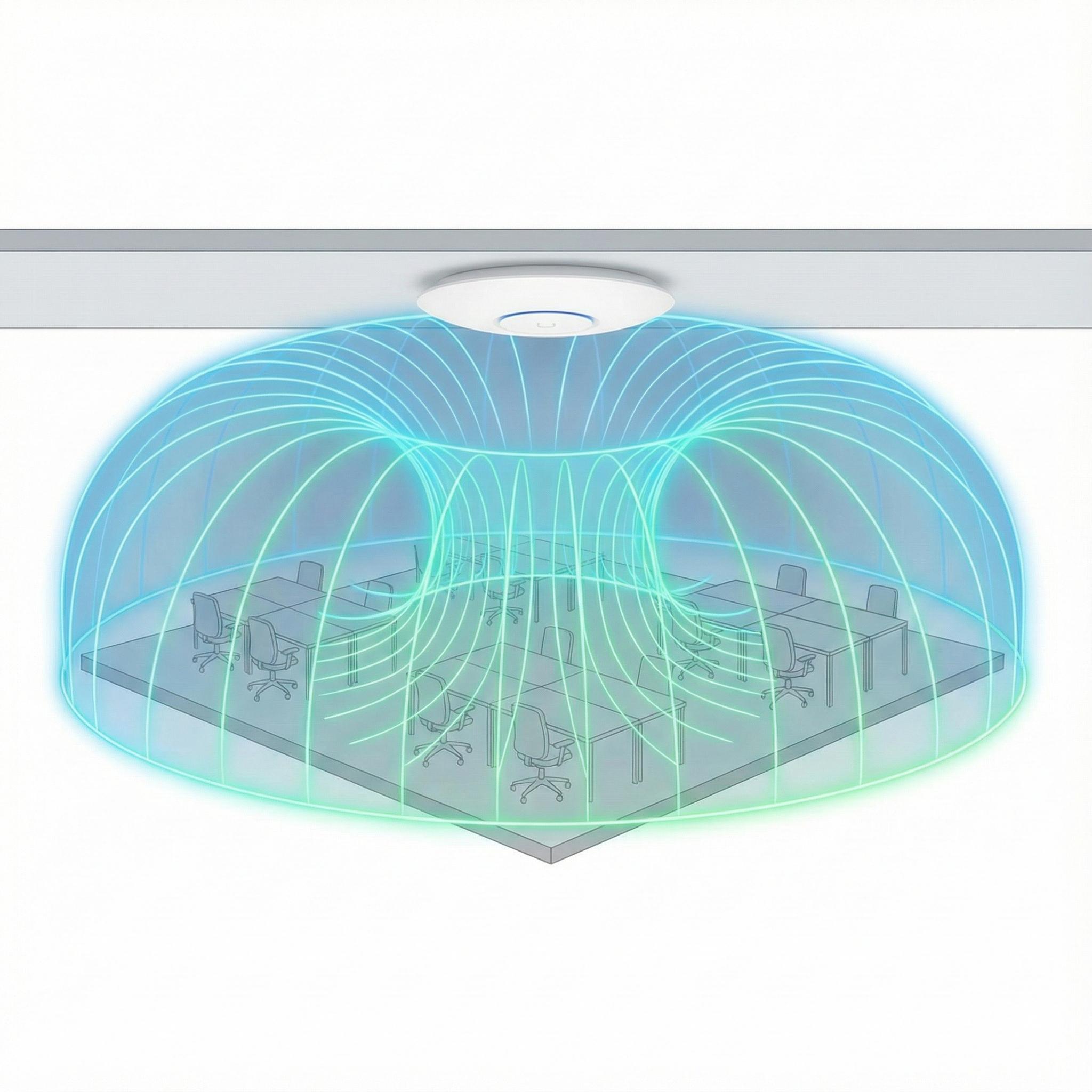
-
Do not mount vertically on a wall: If you mount a ceiling AP flat against a wall, you are shooting half your signal into the wall and the other half into the floor and ceiling. You lose the horizontal coverage needed for the room.
-
Keep it horizontal: Always mount the AP parallel to the ground to ensure the “umbrella” of coverage reaches the users’ devices effectively.
2. Location, Location, Location
Center is Key
Always aim for the center of the intended coverage area. Placing an AP in the corner of a room wastes roughly 50% of your signal strength, as it is absorbed by the corner walls rather than serving client devices.
Height Considerations
-
Too High: If installed in a warehouse ceiling higher than 8-10 meters, the signal may be too weak by the time it reaches the floor. In these cases, you may need drop-pole mounts or directional outdoor APs.
-
Too Low: If installed below 2.5 meters, the AP becomes a target for vandalism or accidental damage, and furniture/obstacles will likely block the signal.
3. The Enemy: Physical Interference Sources
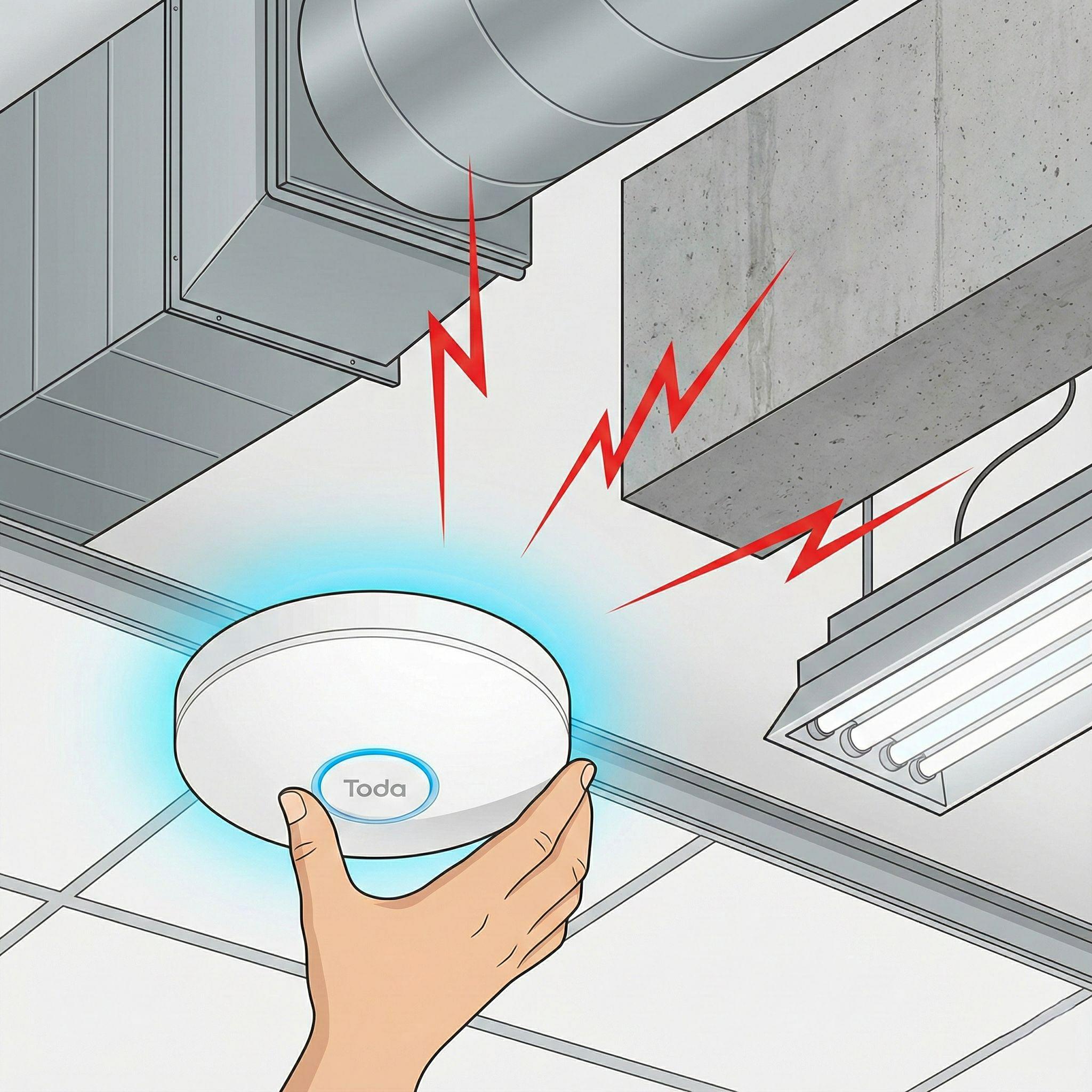
Before drilling any holes, look above the drop ceiling and around the mounting point. Wi-Fi signals (especially 5GHz and 6GHz) struggle to penetrate dense materials.
Avoid these obstacles by at least 1 meter:
-
Metal HVAC Ducts: Large metal air conditioning ducts act as giant shields. Never mount an AP directly above or immediately below a metal duct.
-
Concrete Beams: Concrete absorbs moisture, which kills RF signals.
-
Tinted Glass/Mirrors: These often contain metallic films that reflect Wi-Fi signals, causing erratic behavior and signal scattering.
4. Fighting EMI (Electromagnetic Interference)
Even if the line of sight is clear, invisible interference can degrade performance. This is known as Electromagnetic Interference (EMI).
Keep your APs away from:
-
Fluorescent Light Fixtures: Older ballasts in fluorescent lights can generate significant RF noise. Keep APs at least 0.5 meters away from light fixtures.
-
Power Lines: Do not run your Ethernet (PoE) cables parallel to high-voltage electrical lines without proper shielding.
-
Other Wireless Devices: Keep APs away from microwaves, cordless phone base stations, and Bluetooth hubs.
5. Spacing and Channel Overlap
If you are installing multiple Toda APs in a large open office, spacing is critical to avoid Co-Channel Interference (where APs talk over each other).
-
The Rule of Thumb: In a typical office environment, space APs roughly 15 to 20 meters apart.
-
Turn Down the Power: It sounds counter-intuitive, but running APs at 100% Tx power is often detrimental. It causes devices to “stick” to a faraway AP even when a closer one is available. Lowering the transmit power slightly helps client devices roam more smoothly between APs.
6. The Cable Connection
Finally, remember that the AP is only as fast as the cable feeding it.
-
Use CAT6 or Higher: For modern Wi-Fi 6 APs, older CAT5e cables may struggle to deliver stable Gigabit speeds over long distances.
-
Check PoE Budget: Ensure your PoE Switch (another specialty of Toda) has enough power budget. If an AP requires 30W (PoE+) but the switch only supplies 15W, the AP may boot up but reboot randomly under load.
Summary Checklist for Installers
[ ] Is the AP mounted horizontally on the ceiling (not the wall)?
[ ] Is it away from metal ducts and load-bearing pillars?
[ ] Is it at least 0.5m away from fluorescent lights?
[ ] Is the Ethernet cable certified CAT6?
[ ] Have you configured non-overlapping channels (1, 6, 11 for 2.4GHz)?
Need help planning a complex deployment?
Toda offers project consultation for our bulk buyers. If you are unsure which AP model fits your warehouse or hotel project, send us your floor plans.
[Contact Toda Technical Support]
Post time: Dec-16-2025


